Objective:
Optimize memory management by enabling Incremental Garbage Collection in Unity’s Project Settings.
Why This Step is Important:
Incremental GC helps in managing memory more efficiently by breaking down garbage collection into smaller, more manageable chunks. This reduces frame rate spikes and improves overall performance, especially in large or complex projects.
Detailed Instructions:
- Open Project Settings:
- In Unity, navigate to the top menu and select Edit > Project Settings….
- Navigate to Player Settings:
- In the Project Settings window, click on Player in the left-hand sidebar.
- Access Other Settings:
- Within the Player settings, scroll down to find the Other Settings section.
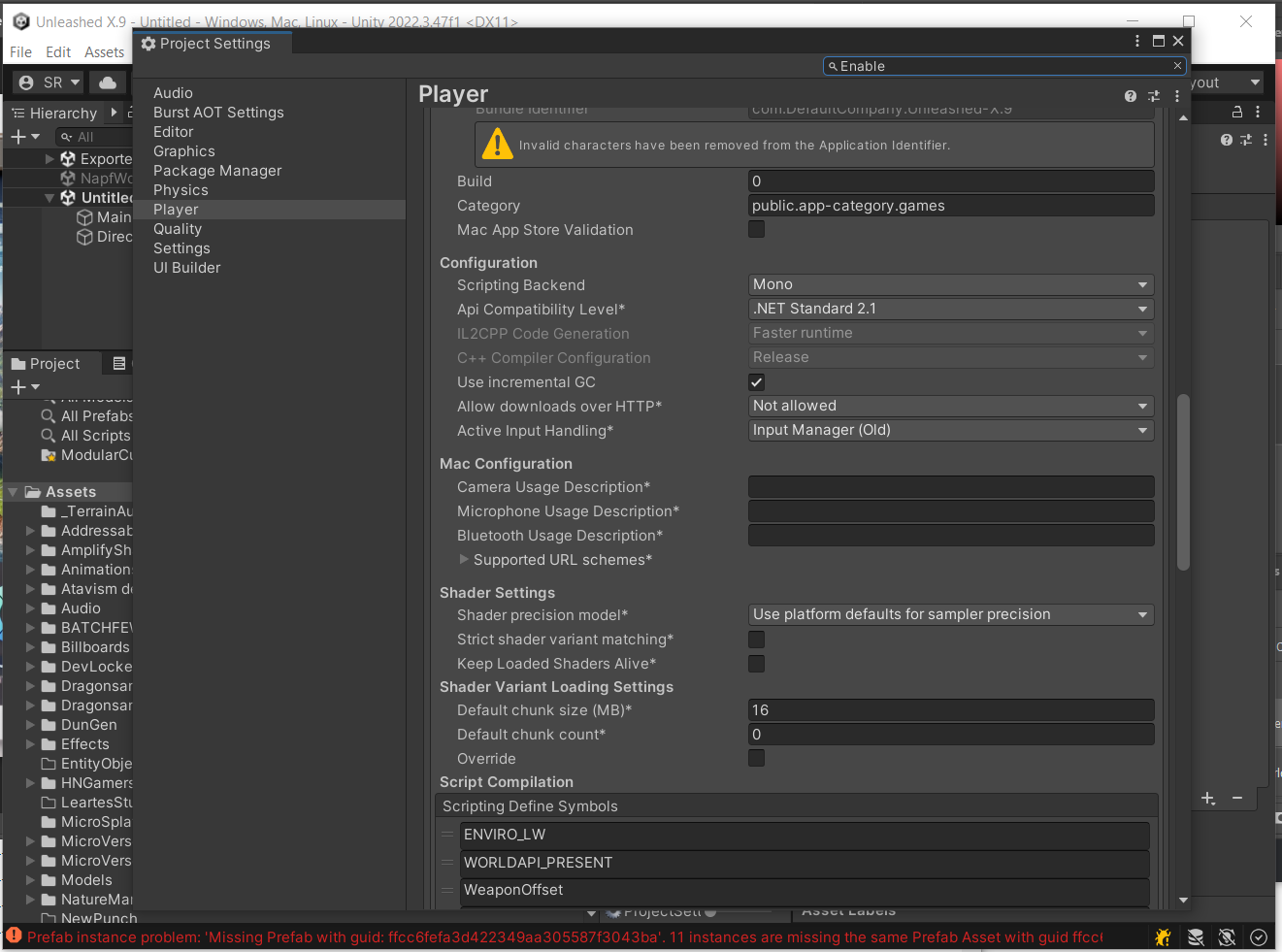
- Enable Incremental GC:
- Locate the Configuration subsection.
- Find the Use Incremental GC option.
- Check the box to enable Use Incremental GC.

- Save Your Settings:
- Unity automatically saves Project Settings changes. However, it’s good practice to save your project after making significant changes by pressing Ctrl + S (Windows) or Cmd + S (Mac).
Notes:
- Compatibility: Ensure that your Unity version supports Incremental GC. This feature is available in Unity 2019.3 and later versions.
- Testing: After enabling, monitor your game’s performance to ensure that Incremental GC behaves as expected.